
GrapheneOS : Guide Partie 2 GrapheneOS: Guide Part 2 Applications essentielles détaillées Detailed Essential Applications
Version 1.1 — 11 août 2026
Par Arnaud Soulignac — Licence CC BY-NC-SA
By Arnaud Soulignac — CC BY-NC-SA License
Ce guide détaille les opérations pour installer et configurer chaque application. Suivez ces instructions pas à pas, illustrées par les captures d'écran, pour un environnement souverain. This guide details the operations to install and configure each application. Follow these step-by-step instructions, illustrated with screenshots, for a sovereign environment.
Prérequis :Prerequisites: Avoir installé GrapheneOS sur votre Pixel (voir Partie 1). GrapheneOS installed on your Pixel (see Part 1).
1. Installation des stores et socle 1. Installing Stores and Base
1. Obtainium
Store pour gérer les mises à jour des APK directement depuis les sources. Store to manage APK updates directly from sources.
Lien officiel / Official Link: obtainium.imranr.dev
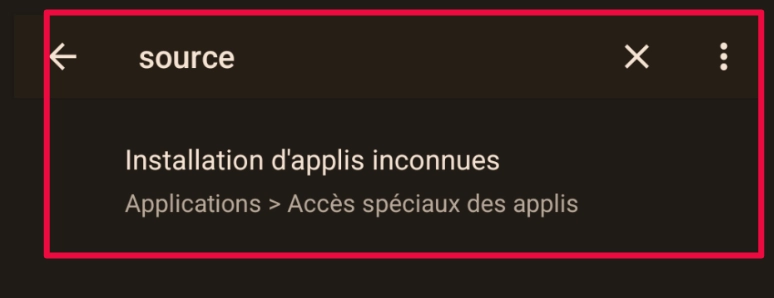
Cherchez "source" dans les paramètres : Search for "source" in settings:
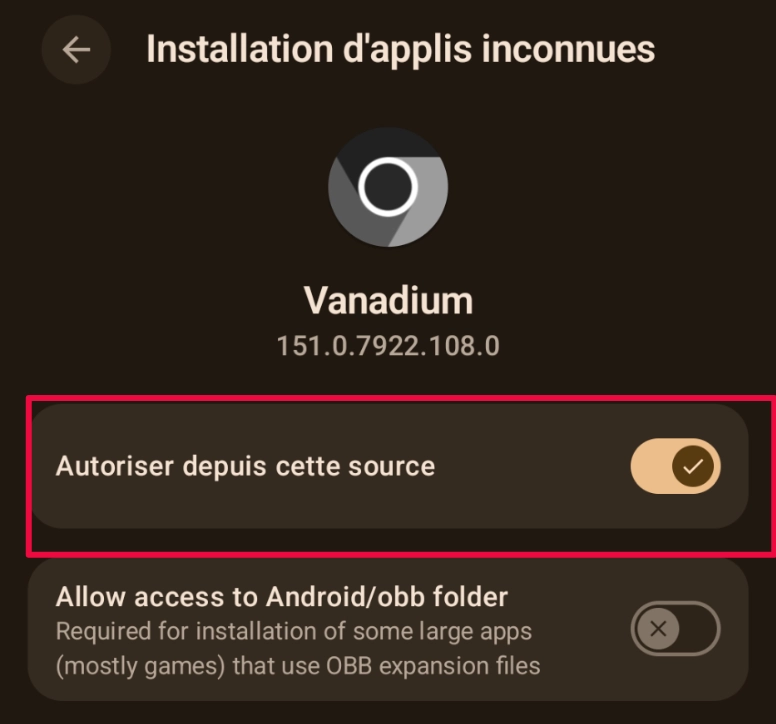
Trouvez Vanadium et activez l'autorisation : Find Vanadium and enable permission:
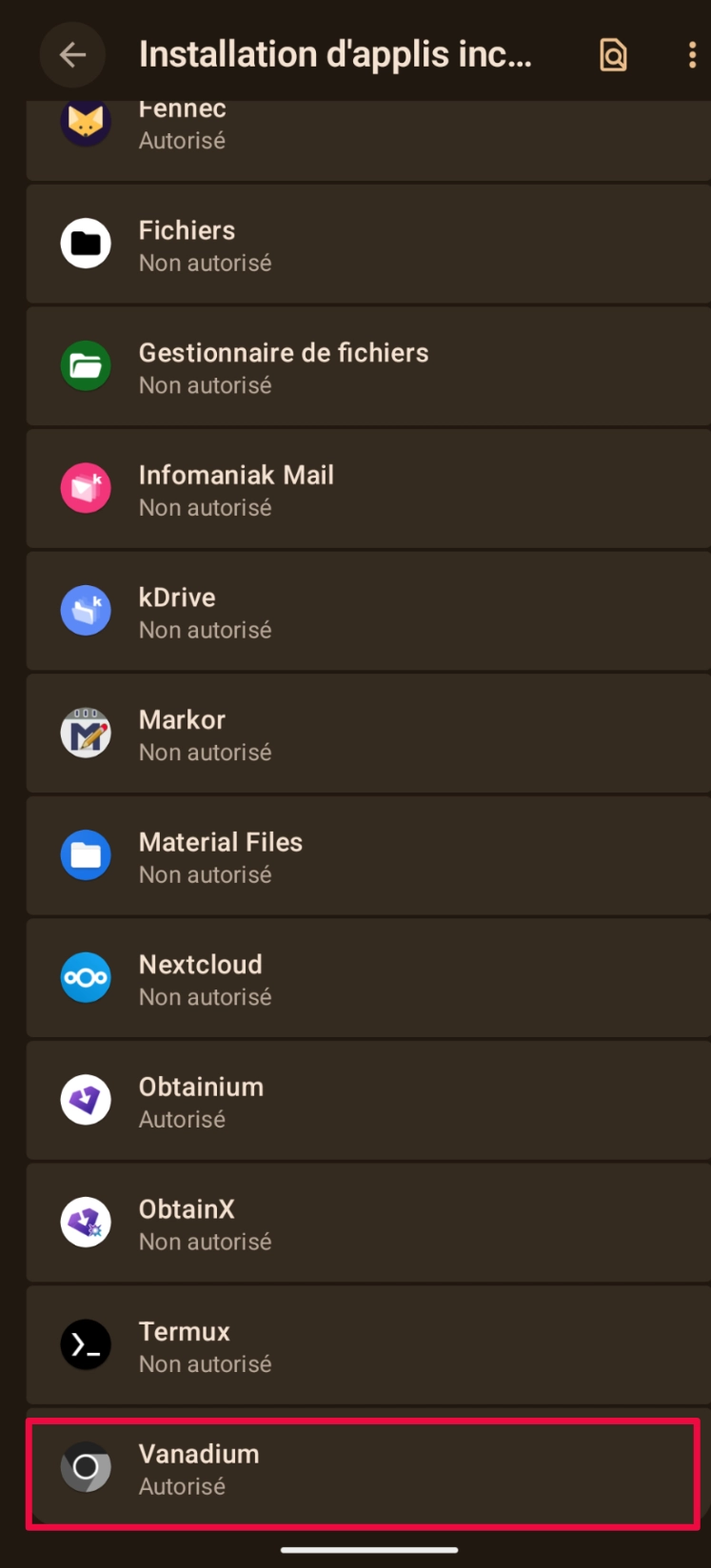
Vérifiez que Vanadium est bien autorisé : Verify Vanadium is authorized:
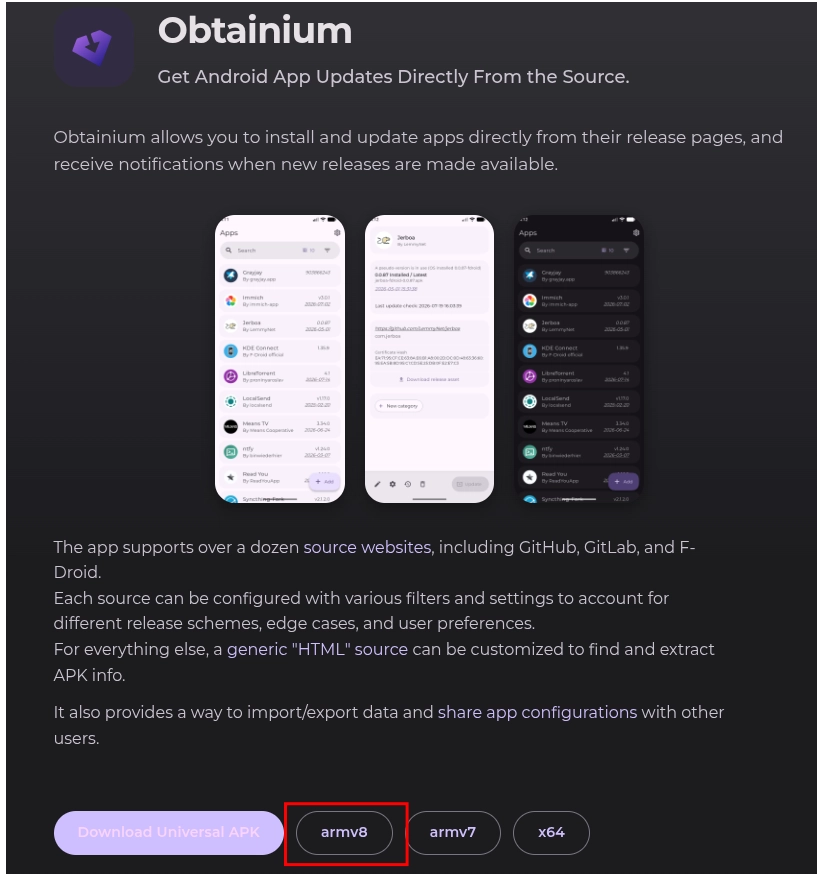
Ouvrez Vanadium et allez sur le lien officiel. Pour les Pixel, sélectionnez la version « armv8 » : Open Vanadium and go to official link. For Pixel, select "armv8" version:
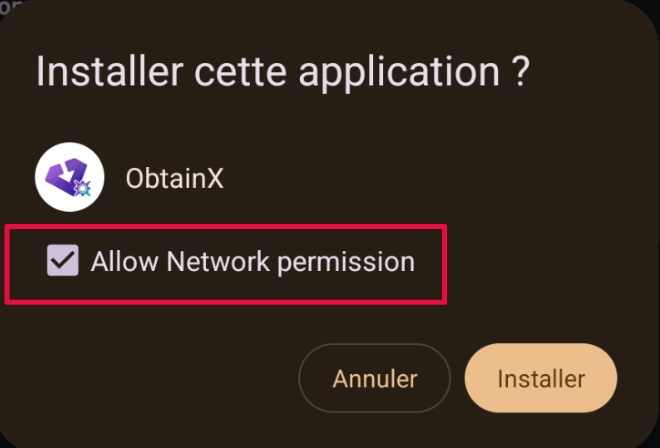
Ouvrez le fichier téléchargé, choisissez « Programme installation kit ». Cochez « Allow Network permission » puis installez. Open downloaded file, choose "Package installer". Check "Allow Network permission" then install.
2. F-Droid
Store officiel des applications open source Official open-source app store
Ouvrez Obtainium, cliquez sur « + Ajouter ». Entrez l'URL : https://gitlab.com/fdroid/fdroidclient
Open Obtainium, click "+ Add". Enter URL: https://gitlab.com/fdroid/fdroidclient
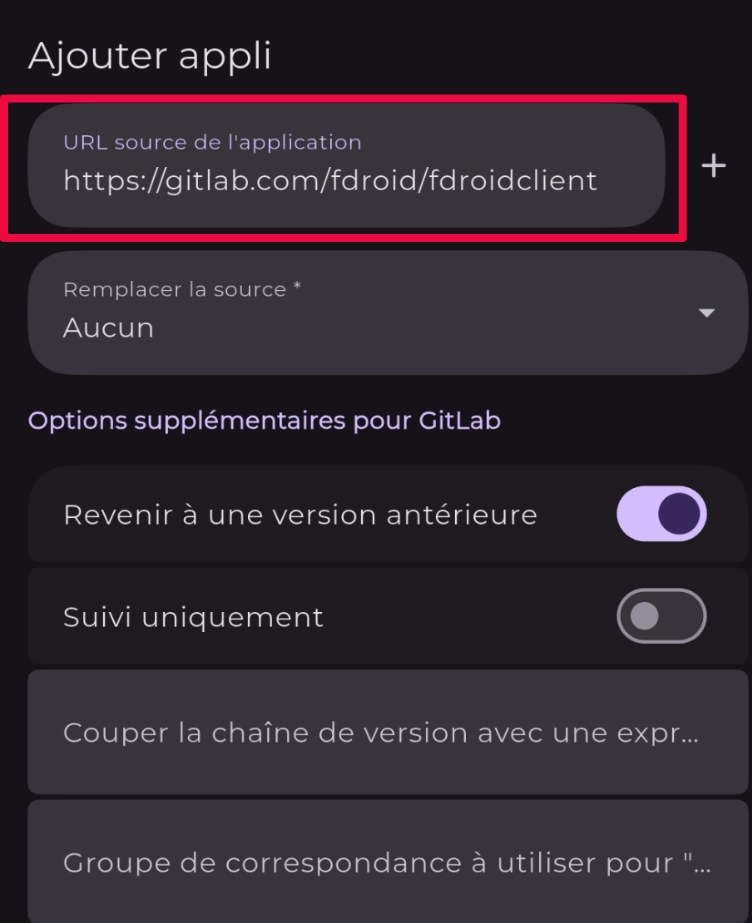
Validez avec « + », puis installez F-Droid depuis la liste. Validate with "+", then install F-Droid from list.
3. Aurora Store
Accès anonyme au Google Play Store Anonymous access to Google Play Store
Ouvrez F-Droid, recherchez « Aurora Store » et installez. Open F-Droid, search "Aurora Store" and install.

4. Sandboxed Play Services
Compatibilité applications Google Google Apps Compatibility
Ouvrez l'App Store natif et installez « Google Play services ». Open native App Store and install "Google Play services".
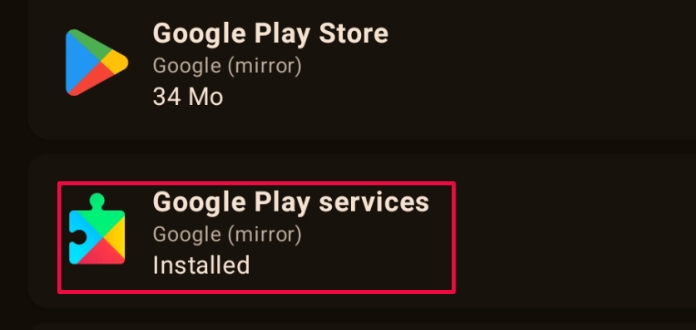
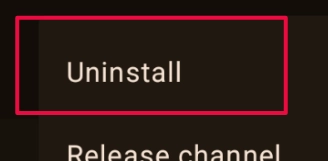
Le Play Store s'installe automatiquement. Supprimez-le (3 points > Uninstall). Utilisez Aurora Store à la place. Play Store installs automatically. Remove it (3 dots > Uninstall). Use Aurora Store instead.
2. Communication 2. Communication
Delta Chat
Messagerie chiffrée via email (remplace WhatsApp) Encrypted messaging via email (replaces WhatsApp)
Lien / Link: F-Droid Delta Chat
Installation :Installation: Via F-Droid. Chiffrement automatique. Via F-Droid.Automatic encryption.
Infomaniak Mail
Email souverain (remplace Gmail) Sovereign Email (replaces Gmail)
Lien / Link: F-Droid Infomaniak Mail
Créez un compte sur infomaniak.com. Recommandation : Forfait myKsuite+. Create account on infomaniak.com. Recommendation: myKsuite+ plan.
K-9 Mail / Quick / Saracroche
- K-9 Mail: Lien F-Droid (Client email open source)(Open source email client)
- Quick: Lien F-Droid (SMS traditionnelle)(Traditional SMS)
- Saracroche: Lien F-Droid (Anti-spam appels/SMS)(Call/SMS Anti-spam)
3. Web et actualités 3. Web and News
Fennec & Brave
- Fennec (Firefox): Lien F-Droid
- Brave: Dépôt F-Droid Brave
Nunti (RSS) & NouTube
- Nunti: Lien F-Droid. Ajoutez un flux (ex: Le Monde). Add a feed (e.g., Le Monde).
- NouTube: Lien F-Droid. YouTube sans pub.YouTube without ads.
4. Bureautique 4. Office
- kDrive: Lien F-Droid (Cloud souverain)(Sovereign Cloud)
- kMeet: Lien F-Droid (Visio)(Video Conferencing)
- Joplin: Lien F-Droid (Notes chiffrées)(Encrypted Notes)
- Markor: Lien F-Droid (Éditeur Markdown)(Markdown Editor)
- Material Files: Lien F-Droid (Gestionnaire fichiers)(File Manager)
5. Multimédia 5. Multimedia
- Open Camera: Lien F-Droid
- VLC: Lien F-Droid
- Jellyfin: Lien F-Droid (Nécessite serveur auto-hébergé)(Requires self-hosted server)
- FFShare / Kompact: Compression vidéo/image.Video/image compression. (FFShare, Kompact)
6. Utilitaires & Système 6. Utilities & System
- Organic Maps: Lien F-Droid (Cartes hors ligne)(Offline Maps)
- Etar: Lien F-Droid (Calendrier)(Calendar)
- HeliBoard: Lien F-Droid (Clavier)(Keyboard)
- Termux: Lien F-Droid (Terminal Linux)(Linux Terminal)
- Quire: Lien F-Droid (Liseuse EPUB)(EPUB Reader)
- Translate You: Lien F-Droid (Traduction hors ligne)(Offline Translation)
- OTP Helper: Lien F-Droid (Copie codes SMS)(Copy SMS codes)
Soutenir le projet
Ce guide est gratuit et open source (Licence CC BY-NC-SA). Si vous souhaitez soutenir son développement et la création de futures documentations :
🞋 Virement bancaire (recommandé) :
IBAN : FR76 1744 8000 0200 1016 9027 078
BIC : SFPEFRP2XXX
Bénéficiaire : Arnaud Soulignac
Banque : Helios (banque engagée pour l'écologie)
∞ Soutien récurrent :
Liberapay - AESGC
💙 Merci ! Votre soutien permet de maintenir cette documentation à jour et de développer de nouveaux guides pour la souveraineté numérique
Support the project
This guide is free and open source (CC BY-NC-SA License). If you would like to support its development and the creation of future documentation:
Bank transfer (recommended):
IBAN : FR76 1744 8000 0200 1016 9027 078
BIC : SFPEFRP2XXX
Beneficiary : Arnaud Soulignac
Bank : Helios (bank committed to ecology)
∞ Recurring support:
Liberapay - AESGC
💙 Thank you! Your support helps keep this documentation up to date and develop new guides for digital sovereignty
Félicitations !Congratulations! Vous avez les clés pour un écosystème souverain. You have the keys for a sovereign ecosystem.
« La souveraineté numérique se construit application par application. » "Digital sovereignty is built app by app."